
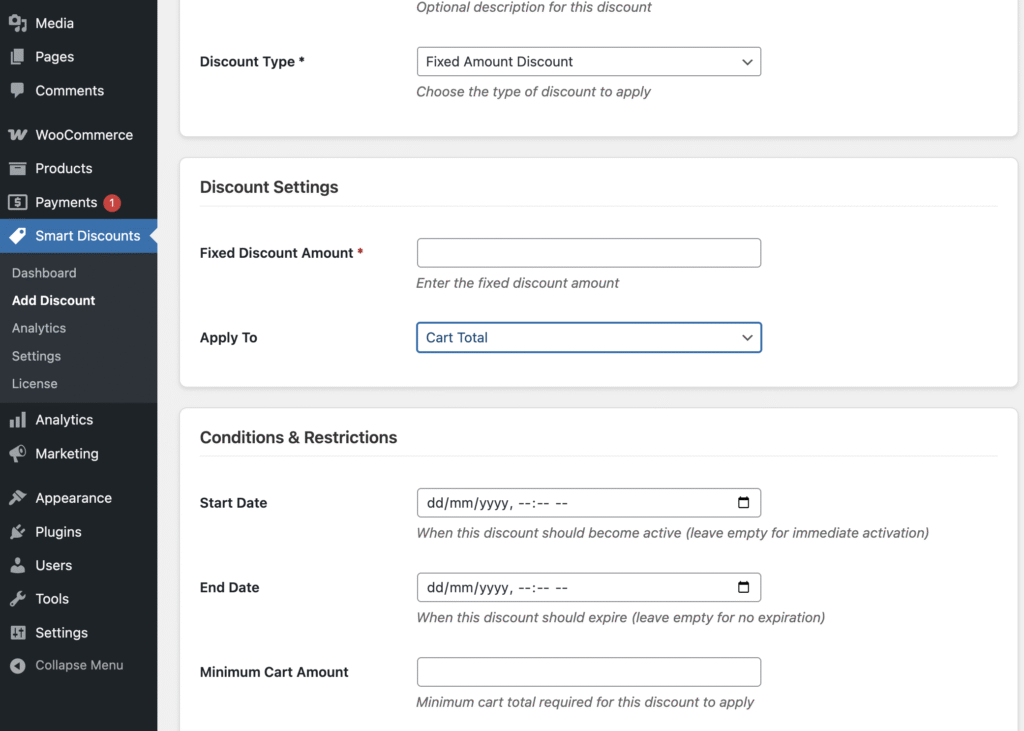
Discounts > Add Discountfrom your WordPress admin sidebar.- Enter a Discount Name to identify this rule (e.g.,
Summer Sale 20% Off). - Choose a Discount Type:
- Example: Select Percentage Discount for a 20% off sitewide sale, or Buy X Get Y for “Buy 2, Get 1 Free”.
- Fill out the Discount Settings. The available fields will change depending on the type you chose.
- Example (Percentage Discount): Set Discount Value to
20for 20% off. - Example (Buy X Get Y): Set Buy X Quantity to
2, Get Y Quantity to1.
- Example (Percentage Discount): Set Discount Value to
- Configure Conditions & Restrictions for advanced targeting:
- Start Date / End Date (e.g., Start:
2024-06-01, End:2024-06-15for a time-limited promotion) - Minimum / Maximum Cart Amount (e.g., Minimum:
$50to only apply for larger orders) - Usage Limit (e.g., Limit:
100uses total) - Priority (higher priority rules override lower ones if multiple discounts match)
- Start Date / End Date (e.g., Start:
- Set up sidebar restrictions if you want to target specific products, categories, or users:
- Applicable/Excluded Products (e.g., Apply discount only to products: “Red Sneakers”, “Blue Jeans”)
- Applicable/Excluded Categories (e.g., Exclude category: “Gift Cards”)
- User Roles (e.g., Only for “Wholesale Customers”)
- Change Status to
Activeto enable the discount right away. - Click Save Discount to finish.
Example: Create a Flash Sale
- Discount Name:
Flash Friday 15% - Discount Type:
Percentage Discount - Discount Value:
15 - Start Date:
2024-07-12 08:00 - End Date:
2024-07-13 23:59 - Minimum Cart Amount:
$20 - Status:
Active
Example: Launch “Buy 1 Get 1 Free” for T-Shirts
- Discount Name:
BOGO Tees - Discount Type:
Buy X Get Y - Buy X Quantity:
1 - Get Y Quantity:
1 - Applicable Products: “Classic T-Shirt”
- Status:
Active


